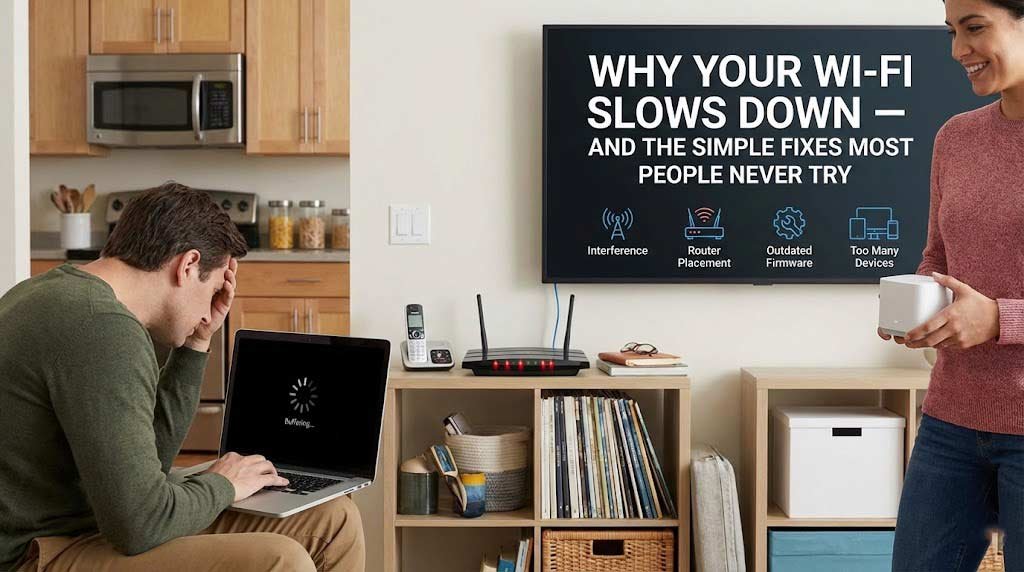
You’re streaming a movie. The video quality suddenly drops to 480p, then starts buffering. Your Zoom call freezes mid-sentence. The webpage you’re trying to load times out. You check your internet plan—you’re paying for 300 Mbps—but your speed test shows 12 Mbps.
This is the modern agony of slow Wi-Fi, and it’s happening in millions of homes every evening. The frustrating part? Usually, the problem isn’t your internet service provider or your internet plan. It’s something fixable in your home setup that most people never think to address.
We’re going to explain exactly why your Wi-Fi slows down using simple physics and network principles—no technical jargon required. Then we’ll walk through the fixes that actually work, ranked from “takes 30 seconds” to “requires modest investment but solves it permanently.”
Because here’s the truth most people don’t realize: slow Wi-Fi is almost never about your internet speed. It’s about how that speed reaches your devices.
The Physics of Why Wi-Fi Slows Down: It’s Not What You Think
Wi-Fi seems magical—invisible waves carrying data through walls at hundreds of megabits per second. But Wi-Fi operates under physical laws that create predictable problems. Understanding these basics makes the solutions obvious.
The Highway Analogy That Actually Explains It:
Think of your internet connection as a highway coming into your home. Your internet plan determines how many lanes that highway has (bandwidth). But Wi-Fi is the local road system distributing traffic to different rooms (devices).
Problem 1: You can have a 10-lane highway (gigabit internet) but if your local roads are dirt paths (old router), traffic still crawls.
Problem 2: Even with great roads, if 50 cars (devices) try to use them simultaneously, congestion happens—especially if some cars are dump trucks (streaming video) hogging multiple lanes.
The Three Physical Laws That Govern Wi-Fi Speed:
1. Signal Degrades with Distance Wi-Fi signal strength drops exponentially with distance. Move twice as far from your router, and signal strength doesn’t halve—it quarters (or worse).
- At 10 feet: Full speed possible
- At 30 feet: Speed reduction begins
- At 50+ feet: Significant degradation
- Through walls: Multiply distance by 1.5-3x depending on materials
2. Obstructions Block Signal Wi-Fi waves are stopped or weakened by physical materials:
- Drywall: Minor signal loss (10-15%)
- Wood: Moderate loss (20-30%)
- Brick: Significant loss (40-50%)
- Concrete: Severe loss (60-75%)
- Metal: Near-complete blockage (80-95%)
- Water: Strong absorption (humans are 60% water—standing near router blocks signal)
Why this matters: Your router in the basement trying to reach the second-floor bedroom must penetrate two floors (wood + insulation + drywall), possibly ductwork (metal), and possibly a bathroom (water pipes). Signal loss compounds with each barrier.
3. Frequency Bands Have Different Trade-offs
Modern routers use two frequency bands:
2.4 GHz:
- Longer range (penetrates walls better)
- More congested (every neighbor’s router, baby monitors, microwaves, Bluetooth all use this frequency)
- Lower maximum speed (typically maxes at 100-150 Mbps in real-world conditions)
5 GHz:
- Shorter range (doesn’t penetrate walls as well)
- Less congested (fewer devices use this frequency)
- Higher maximum speed (can reach 500-1000+ Mbps with modern standards)
The typical problem: Your phone auto-connects to 2.4 GHz because it reaches further, but you’re getting slow speeds because that band is congested. Meanwhile, the faster 5 GHz band sits unused.
The Real Reasons Your Wi-Fi is Slow Right Now
Let’s diagnose the actual problems happening in your home. These account for 90% of Wi-Fi complaints:
Reason #1: Router Location is Terrible
The Problem: Your router is wherever the cable guy happened to install it—likely a corner of your basement, garage, or utility closet. This is the single biggest cause of poor Wi-Fi.
Why it’s terrible:
- Basements: Signal must penetrate multiple floors to reach living areas
- Corners: Signal travels in all directions, so corner placement wastes 50%+ of coverage on areas outside your home
- Enclosed spaces: Utility closets and cabinets block signal before it even starts
What most people don’t realize: Router placement determines Wi-Fi quality more than router quality. A $50 router in your home’s center works better than a $300 router in your basement corner.
The Fix: Move your router to the center of your home, elevated (on a shelf or mounted high on a wall), in an open area. This single change can double your effective Wi-Fi speed throughout your home.
Reason #2: Your Router is Ancient
The Problem: You’re using the router your ISP provided in 2016, or the router you bought a decade ago.
Why it matters: Wi-Fi standards have evolved dramatically:
- Wi-Fi 4 (802.11n, ~2009): Max 450 Mbps
- Wi-Fi 5 (802.11ac, ~2014): Max 1.3 Gbps
- Wi-Fi 6 (802.11ax, ~2020): Max 9.6 Gbps
- Wi-Fi 6E (2021-present): Wi-Fi 6 + 6 GHz band
- Wi-Fi 7 (802.11be, ~2024): Max 46 Gbps
If your router is from 2016 or earlier, you’re likely stuck on Wi-Fi 5 or older technology. Even if you pay for gigabit internet, that old router can’t deliver it wirelessly.
Real-world impact:
- Wi-Fi 5 router: Practical speeds of 200-400 Mbps
- Wi-Fi 6 router: Practical speeds of 600-1200 Mbps
- Same internet plan, different results
The Fix: If your router is 5+ years old, replacing it with a modern Wi-Fi 6 router will immediately improve speeds. Cost: $80-$200 for good quality.
Reason #3: Network Congestion (Too Many Devices)
The Problem: The average American household has 25+ connected devices in 2026:
- Phones (2-4)
- Laptops/tablets (2-4)
- Smart TVs (1-3)
- Gaming consoles (1-2)
- Smart home devices (thermostats, doorbells, cameras, locks, lights: 10-15)
- Streaming devices (Roku, Fire TV, Apple TV)
Every device shares bandwidth. High-bandwidth activities (4K streaming, video calls, online gaming, file downloads) eat up the available capacity.
Why evening slowdowns happen: 5pm-11pm is peak usage time. Everyone in your household is online simultaneously, plus your neighbors are doing the same, creating congestion on both your network and your ISP’s local infrastructure.
The Fix:
- Quality of Service (QoS) settings: Configure your router to prioritize important traffic (video calls for work) over less critical activities (software updates)
- Upgrade your internet plan: If you have 15+ devices and stream heavily, 100 Mbps isn’t enough; consider 300-500 Mbps plans
- Network management: Schedule large downloads for off-peak hours (2am-6am)
Reason #4: Wi-Fi Channel Congestion
The Problem: Your router broadcasts on specific “channels” (like radio stations). If your neighbors’ routers use the same channels, they interfere with each other.
The apartment building problem: In a 20-unit building, 15+ routers might be broadcasting on the same 2.4 GHz channels, creating interference that slows everyone’s Wi-Fi.
Why auto-select fails: Many routers auto-select channels at startup, then never change. If your neighbor bought a new router last week that’s now broadcasting on “your” channel, you’re stuck with interference until you manually change.
The Fix: Use a Wi-Fi analyzer app (free apps like Wi-Fi Analyzer for Android, NetSpot for Mac/PC) to see which channels are least congested, then manually set your router to those channels:
- Best 2.4 GHz channels: 1, 6, 11 (these don’t overlap)
- 5 GHz: Usually less congestion; auto-select often works well here
Reason #5: Outdated Devices
The Problem: Your 2015 laptop has a Wi-Fi 5 adapter. Your router supports Wi-Fi 6. But your laptop can only receive Wi-Fi 5 signals—it’s the bottleneck.
Why this matters: The fastest Wi-Fi speed is determined by the slowest device in the connection. Router supports 1200 Mbps, but your old tablet maxes out at 300 Mbps.
The Fix:
- For laptops: External USB Wi-Fi adapters ($25-40) can upgrade older devices to Wi-Fi 6
- For older devices: Connect via Ethernet when possible
- When replacing devices: Check for Wi-Fi 6 or 6E support
Reason #6: Background Activity You Don’t Know About
The Problem: Your devices are doing things you didn’t ask them to do:
- Windows Update downloading 2 GB patch
- Cloud backup syncing thousands of photos
- Smart TV downloading system update
- Gaming console downloading 50 GB game update
- Antivirus running full system scan
These background tasks consume bandwidth silently, slowing everything else.
The Fix:
- Check Task Manager (Windows) or Activity Monitor (Mac) to see bandwidth usage
- Disable automatic updates during peak hours
- Configure cloud backup to sync only overnight
- Set gaming consoles to download updates during off-peak hours
The 30-Second Fixes That Actually Work
Before you spend money on anything, try these simple solutions. They resolve slow Wi-Fi issues about 50% of the time:
Fix #1: Restart Your Router and Modem (30 seconds)
Why it works: Routers accumulate memory errors, get stuck in bad states, and benefit from a fresh start. This is the #1 most effective troubleshooting solution.
How to do it right:
- Unplug power from both modem and router
- Wait 30 full seconds (seriously—count)
- Plug modem back in first, wait for all lights to stabilize (1-2 minutes)
- Plug router back in, wait for it to fully boot (1-2 minutes)
- Test your speeds
Do this regularly: Monthly restarts keep performance optimal. Set a calendar reminder.
Fix #2: Switch to 5 GHz Band (2 minutes)
Why it works: 5 GHz is less congested and faster than 2.4 GHz. Many devices auto-connect to 2.4 GHz even when 5 GHz is available.
How:
- Go to Wi-Fi settings on your device
- Look for two network names (usually YourNetwork and YourNetwork-5G)
- Connect to the one with “-5G” or “5GHz” in the name
- Forget the 2.4 GHz network so you don’t automatically reconnect to it
Caveat: Only works if you’re close enough to router (within 30-40 feet with minimal walls).
Fix #3: Move Closer to Router or Eliminate Obstacles (5 minutes)
Why it works: Every wall between you and the router reduces signal strength. Moving even 10 feet closer can double speeds.
Test this:
- Run speed test on your device in current location
- Move to same room as router
- Run speed test again
- If speed dramatically improves, your problem is distance/obstacles
Permanent fix: If distance is the issue, you need a range extender, mesh system, or better router placement.
Fix #4: Disconnect Unused Devices (5 minutes)
Why it works: Each connected device consumes some bandwidth and router processing power. Disconnecting devices you’re not using frees resources.
How:
- Access your router admin page (typically 192.168.1.1 or 192.168.0.1)
- Find “Connected Devices” section
- Disconnect or block devices you don’t recognize or don’t need
- Note: Smart home devices often stay connected even when “off”
Security benefit: Unknown devices might be neighbors stealing your Wi-Fi. Change your password if you find unauthorized devices.
Fix #5: Update Router Firmware (10 minutes)
Why it works: Router manufacturers release updates that fix bugs, improve performance, and enhance security. Most routers never get updated.
How:
- Log into router admin page
- Find “Firmware Update” or “Router Update” section
- Check for updates and install
- Router will restart (don’t interrupt this process)
Caution: Some ISP-provided routers update automatically. Don’t try to install custom firmware on ISP routers.
The Fixes That Require Investment (But Solve It Permanently)
If simple fixes don’t resolve your issues, these investments provide real, lasting improvements:
Solution #1: Mesh Wi-Fi System ($200-$400)
What it is: Multiple access points placed throughout your home that work together as one seamless network. Unlike range extenders, mesh systems:
- Create a single network name (you don’t manually switch networks)
- Automatically connect you to the strongest signal point
- Hand off connections smoothly as you move through your home
Best options for 2026:
- Budget: TP-Link Deco ($150-200 for 3-pack)
- Mid-range: Google Nest Wi-Fi Pro 6E ($300 for 3-pack)
- Premium: Eero Pro 6E ($420 for 3-pack)
When to choose mesh:
- Home larger than 2,000 sq ft
- Multiple floors
- Wi-Fi dead zones in specific rooms
- You want easy setup and management
When NOT to choose mesh:
- Small apartment (single good router sufficient)
- Router location is optimal (center of home)
- Budget under $150 (good single router better than cheap mesh)
Solution #2: Upgrade to Wi-Fi 6 or 6E Router ($150-$300)
What it improves:
- Higher maximum speeds
- Better performance with many devices connected
- Improved range
- More efficient use of available spectrum
Best options:
- Budget: TP-Link Archer AX55 (~$100)
- Mid-range: ASUS RT-AX86U (~$250)
- Premium: Netgear Nighthawk RAXE500 Wi-Fi 6E (~$500)
When to upgrade:
- Current router is 5+ years old
- You have 15+ devices
- You pay for 300+ Mbps internet but don’t get anywhere near that wirelessly
- You have newer devices that support Wi-Fi 6
Solution #3: Ethernet Wiring for Critical Devices ($0-$500)
Why it’s worth it: Wired connections are always faster and more reliable than wireless. For devices that don’t move (desktop PC, gaming console, smart TV), Ethernet is superior.
The setup:
- Run Ethernet cables from router to device locations
- Can be done yourself (cables are cheap) or by electrician (for in-wall installation)
- Use powerline adapters ($50-100) if running cables is impractical
Immediate benefits:
- Gaming: Lower latency, no lag spikes
- Streaming: No buffering, consistent 4K quality
- Work from home: Reliable video calls
Combined approach: Wire your stationary, bandwidth-heavy devices. This frees up Wi-Fi bandwidth for mobile devices like phones and tablets.
Solution #4: Upgrade Your Internet Plan ($15-50/month more)
When this actually helps:
- You have 10+ devices and currently pay for under 200 Mbps
- Multiple people stream 4K video simultaneously
- You regularly max out your current bandwidth (test during peak usage)
When it does NOT help:
- Your issue is Wi-Fi coverage (walls, distance)—faster internet doesn’t fix this
- Your router is old and can’t deliver the speeds you already pay for
The test:
- Connect laptop directly to modem with Ethernet cable
- Run speed test
- If you get speeds close to your plan: Internet is fine, Wi-Fi is the problem
- If you get much slower speeds: ISP issue or need plan upgrade
The Advanced Troubleshooting Most People Miss
These solutions solve persistent problems that simple fixes can’t address:
Advanced Fix #1: Change DNS Servers
What it does: DNS (Domain Name System) translates website names (google.com) to IP addresses. Slow DNS = slow website loading.
Default DNS (usually your ISP) can be slow. Switching to public DNS services often speeds up web browsing noticeably.
Best DNS options:
- Google DNS: 8.8.8.8 and 8.8.4.4
- Cloudflare: 1.1.1.1 and 1.0.0.1
- OpenDNS: 208.67.222.222 and 208.67.220.220
How to change:
- Go to router admin page
- Find “DNS Settings”
- Change from “Automatic” to “Manual”
- Enter public DNS addresses above
- Save and restart router
Advanced Fix #2: Enable QoS (Quality of Service)
What it does: Prioritizes important traffic over less critical traffic. Ensures your Zoom meeting doesn’t lag because someone else is downloading a game.
How to configure:
- Access router settings
- Find “QoS” or “Traffic Priority” section
- Enable QoS
- Set priorities:
- Highest: Video calls, VoIP, gaming
- Medium: Web browsing, streaming
- Low: Downloads, updates, file syncing
Not all routers support QoS. If yours doesn’t, this is one reason to upgrade to a better router.
Advanced Fix #3: Disable Wi-Fi 6 Features Causing Issues
The problem: Some older devices have compatibility issues with Wi-Fi 6 features like OFDMA and TWT. These can cause dropped connections or slow speeds for older devices.
The fix: Access router settings and try disabling:
- OFDMA
- TWT (Target Wake Time)
- BSS Coloring
Test speeds after each change. Some routers have “compatibility mode” that does this automatically.
Advanced Fix #4: Optimize Router Antenna Position
For routers with external antennas:
- Vertical antenna: Broadcasts horizontally (same floor coverage)
- Horizontal antenna: Broadcasts vertically (multi-floor coverage)
Best configuration:
- Single-story home: Both antennas vertical
- Multi-story home: One vertical, one horizontal (or angled 45°)
For routers without external antennas: Orientation matters. Experiment with rotating router 90° to see if signal improves in problem areas.
Common Wi-Fi Problems and Their Specific Solutions
Let’s address specific scenarios people encounter:
Problem: “My Wi-Fi is fine until evening, then slows to a crawl”
Causes:
- Peak usage time congestion (5pm-11pm)
- Neighbors’ Wi-Fi interference increases when everyone gets home
- Background updates triggered by time of day
- Streaming services’ peak hours
Solutions:
- Switch to less congested Wi-Fi channel
- Enable QoS to prioritize your activities
- Upgrade internet plan if consistently maxing out bandwidth
- Consider mesh system to better distribute load
Problem: “One room has terrible Wi-Fi, everywhere else is fine”
Causes:
- Physical barriers (metal ductwork, brick fireplace, large aquarium)
- Distance from router
- Specific materials in that room’s walls
- Wi-Fi dead zone
Solutions:
- Place mesh node or range extender between router and problem room
- If possible, move router closer to problem area
- Use Ethernet connection if device is stationary
- Check if specific appliances in that room cause interference (microwave, baby monitor)
Problem: “Wi-Fi works great on phone but terrible on laptop”
Causes:
- Laptop has older Wi-Fi adapter
- Laptop Wi-Fi driver needs updating
- Laptop power-saving mode throttling Wi-Fi
- Physical laptop placement (some positions block internal antenna)
Solutions:
- Update laptop Wi-Fi drivers
- Disable power-saving features for Wi-Fi adapter
- Add external USB Wi-Fi adapter ($25-40) with Wi-Fi 6 support
- Run full system scan (malware can cause network issues)
Problem: “Internet works fine wired but slow on Wi-Fi”
Definitive proof: Wi-Fi, not internet, is the issue.
Solutions:
- Router quality/age issue → Upgrade router
- Router location issue → Move to central location
- Interference issue → Change channels
- Device compatibility issue → Update device Wi-Fi adapter
Problem: “Speed test shows fast speeds but everything still feels slow”
Causes:
- High latency (ping) rather than low bandwidth
- DNS issues causing slow website loading
- VPN adding overhead
- ISP throttling specific content types
Solutions:
- Check ping/latency in speed test (over 50ms is problematic)
- Change DNS servers
- Temporarily disable VPN to test
- Use different speed test servers to rule out throttling
The Bottom Line: Most Wi-Fi Problems Are Simple to Fix
The 80/20 Rule of Wi-Fi:
80% of Wi-Fi problems come from just a few causes:
- Router in terrible location
- Old router that can’t deliver modern speeds
- Physical obstacles blocking signal
- Too many devices on congested network
80% of these problems can be fixed with simple, free solutions:
- Move router to central location
- Restart router monthly
- Switch to 5 GHz band
- Disconnect unused devices
- Change to less congested channel
When You Actually Need to Spend Money:
Only if simple fixes don’t work AND:
- Your home is large (2,000+ sq ft) → Mesh system
- Your router is 5+ years old → Upgrade to Wi-Fi 6
- You have persistent dead zones → Range extenders or mesh
- You max out your current internet plan → Upgrade plan
The Truth About Wi-Fi Speed:
Your internet plan determines your maximum possible speed. Your Wi-Fi setup determines if you actually achieve it. Most people paying for 300 Mbps are getting 50 Mbps wirelessly not because their ISP is throttling them, but because their router is in the basement, five years old, and fighting interference from 20 neighbors’ networks.
Fix the Wi-Fi, and your expensive internet plan can finally deliver the speeds you’re paying for.
Start here: Restart your router, move it to a better location, and switch to 5 GHz. These three free fixes solve the majority of slow Wi-Fi complaints. Everything else is optimization.
Related Articles:
- How to Test Your Internet Speed Accurately
- Mesh Wi-Fi vs. Range Extenders: Which Is Right for You?
- The Best Budget Routers for 2026
- How to Secure Your Home Wi-Fi Network
- Understanding Your ISP’s Network Management
Sources:
- HighSpeedInternet.com: “Why Is My Internet So Slow?” (January 2026)
- NetSpot: “How to Fix Slow Wi-Fi”
- HighSpeedOptions: “Why Your Internet is Slow & How to Fix It”
- Starhub: “Why Is My WiFi Slow? Tips to Boost Speed”
- GoCompare: “Why Is My Internet So Slow?” (February 2026)
- Beebom: “12 Best Methods to Fix Slow Wi-Fi Speeds”
- Tech News Today: “WiFi Suddenly Slow? Here’s How To Fix It”
- TestMySpeed.com: “Slow Internet? Top 15 Reasons Why”
- Reolink: “Why Is My Internet So Slow on My Phone?” (2026)